Fundraiser: Difference between revisions
David Ashton (talk | contribs) (Created page with "You can create fundraiser links that can be shared with customers through social media, printed QR codes, email, and text. The link will allow customers to purchase a single item on your LinkPOS menu. So first create a fundraiser item on your menu. Then follow these steps to create and manage fundraisers: # Navigate to https://linkpos.com/fundraiser ## Log in using the company, store and password that you would use to set up an iPad register in your store ## File:F...") |
David Ashton (talk | contribs) No edit summary |
||
| (2 intermediate revisions by the same user not shown) | |||
| Line 7: | Line 7: | ||
Then follow these steps to create and manage fundraisers: | Then follow these steps to create and manage fundraisers: | ||
# Navigate to https://linkpos.com | # Navigate to https://reports.linkpos.com | ||
## Log in using | ## Log in using your linkpos.net credentials | ||
## | ## Select Fundraisers from the menu on the left. | ||
# Now you will see the fundraiser dashboard. | # Now you will see the fundraiser dashboard. In this example there aren't any fundraisers so let's create one. | ||
# Under the Create a New Fundraiser section select the menu from the list that contains the fundraiser item that you want to sell | |||
## [[File:Fundraiser select menu.jpg|frameless]] | ## [[File:Fundraiser select menu.jpg|frameless]] | ||
# With the menu selected it will show the items in that menu. Select the fundraiser item you want to use in your fundraiser. | # With the menu selected it will show the items in that menu. Select the fundraiser item you want to use in your fundraiser. | ||
| Line 19: | Line 20: | ||
## [[File:Fundraisers.jpg|frameless]] | ## [[File:Fundraisers.jpg|frameless]] | ||
# The URL displayed with the fundraiser is the link you will provide to customers. You can encode it in a QR code. You can put this link on a web site or social media or direct email. | # The URL displayed with the fundraiser is the link you will provide to customers. You can encode it in a QR code. You can put this link on a web site or social media or direct email. | ||
## [[File:Fundraiser link highlighted.jpg|frameless]] | |||
# When the customer clicks the link they will be directed to a page to purchase the fundraiser item. | # When the customer clicks the link they will be directed to a page to purchase the fundraiser item. | ||
## The customer can select the number of items to purchase and then click Pay Now. | ## The customer can select the number of items to purchase and then click Pay Now. | ||
Latest revision as of 20:39, 12 May 2025
You can create fundraiser links that can be shared with customers through social media, printed QR codes, email, and text.
The link will allow customers to purchase a single item on your LinkPOS menu.
So first create a fundraiser item on your menu.
Then follow these steps to create and manage fundraisers:
- Navigate to https://reports.linkpos.com
- Log in using your linkpos.net credentials
- Select Fundraisers from the menu on the left.
- Now you will see the fundraiser dashboard. In this example there aren't any fundraisers so let's create one.
- Under the Create a New Fundraiser section select the menu from the list that contains the fundraiser item that you want to sell
- With the menu selected it will show the items in that menu. Select the fundraiser item you want to use in your fundraiser.
- Now give the fundraiser a name and touch Create to create the fundraiser. The name given here will be shown to the customer along with the name of the fundraiser menu item.
- Now you can see the new fundraiser in the list of fundraisers
- The URL displayed with the fundraiser is the link you will provide to customers. You can encode it in a QR code. You can put this link on a web site or social media or direct email.
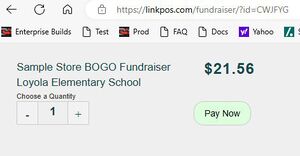
- When the customer clicks the link they will be directed to a page to purchase the fundraiser item.
- The customer can select the number of items to purchase and then click Pay Now.
- When they click Pay Now it expands to allow them to enter their credit card information and purchase the fundraiser item.
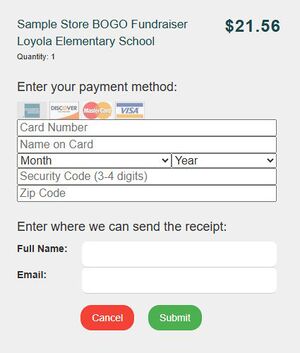
- The customer will be emailed a receipt for the purchase.
- The store will receive this order as an online order.


